
Welcome to Kitchen Table Recording
Hello, and welcome to the very first Kitchen Table Recording. I'm Magnus, and this column is for anyone who makes music at home with whatever happens to be lying around, then wants to share it with friends, family or fans. Each entry takes one everyday recording problem and sorts it out in plain language. No expensive gear, no shopping list, nobody trying to sell you anything.
This first one is about the recorder most of us already carry in a pocket: the phone. If you've ever played back your song and thought it sounded thin, boomy, or like it was recorded at the bottom of a well, the fix is rarely a new app or a clever setting. It's where the phone sat, how far away you were, and which room you picked. Those three choices cost nothing, and you can have a go at all of them tonight.
I'll use Apple's Voice Memos app as the example, because it comes on every iPhone and recently picked up a trick that's handy for singers. The placement and room advice carries over to whatever phone you have.
Get the phone close, mic-up, and hands off
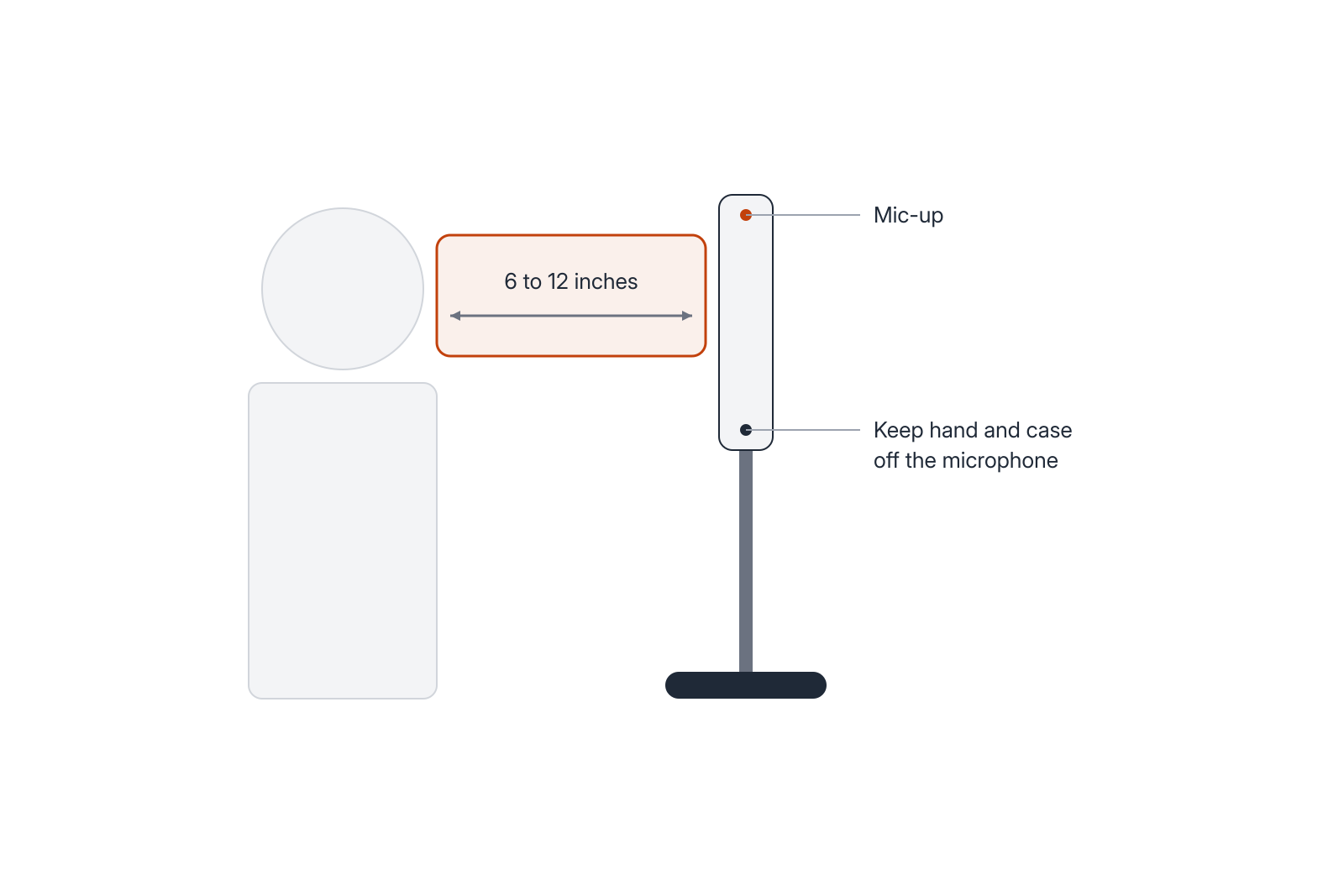
Start with distance, because it changes your recording more than anything else. For a voice, one guide to Voice Memos suggests holding the iPhone mic-up, about 6 to 12 inches from your mouth, and singing or speaking toward it. That's a school ruler's length at most. Close enough that your voice is the loudest thing the phone hears, not so close that you're practically kissing the glass.
Being close is also your best defence against the rest of the house. Keeping the microphone near the sound helps keep traffic, wind and room noise in the background, and the other half of the same advice is simple: keep your hand or case off the microphone. Before your first take, find the little microphone holes on your phone and check that your grip, or that chunky protective case, isn't sitting over them. A phone propped on a shelf, a stand or a pile of books tends to behave better than a hand-held one anyway. Hands fidget, and fidgeting gets recorded.
Instruments need a bit more trial and error, because a guitar, a piano or an accordion doesn't have a mouth to aim at. If you sing and play at the same time, the phone has to catch both, so look for a spot where your voice and the instrument reach it at a similar level. Record ten seconds and listen back. If the guitar drowns you out, move the phone up toward your face. If your voice swamps the guitar, lower the phone or lean back a little. Small moves, quick tests, and you'll usually find the spot within a few goes.
Pick the room by ear
Despite the name of this column, the kitchen table isn't always the best seat in the house. Kitchens are often full of tiles, cupboard doors and things that hum. Walk into a couple of rooms, clap once and listen. If the clap rings or flutters after it, the room will add that ring to your song too. A bedroom with curtains, a rug and a wardrobe full of clothes, or the corner of a living room by the sofa, is worth trying. Better still, record the same ten seconds in two rooms and compare them. Your ears will settle it faster than any rule.
While you're there, switch off what you can: the washing machine, the TV next door, the radio, the noisy extractor fan. Close the window if there's traffic outside. (If you switch off the fridge, put your car keys inside it so you can't leave the house without remembering.) None of this has to be perfect. If a bit of hum or echo still sneaks in, Voice Memos has an Enhance Recording option that reduces background noise and room reverberation with a single tap. Treat it as a tidy-up for a good take rather than a rescue for a bad one. And if you want to keep the untouched version, Save As lets you save your edits as a new recording without altering the original file.
Don't lock the screen mid-take
Locking the screen stops a Voice Memos recording, as one App Store reviewer who uses VoiceOver has found, so leave it unlocked until you've finished. Switching to other apps is fine as long as no other audio plays, so reading lyrics from your notes works, but starting a video or some music does not.
Singing over your own backing track on the iPhone 16 Pro
If you own the iPhone 16 Pro or 16 Pro Max, Voice Memos can now layer a vocal track on top of an instrumental you've already recorded, and you don't need headphones to do it. With iOS 18.2, your instrumental plays through the iPhone's speaker while the phone records your vocal at the same time. Apple says the A18 Pro chip and machine learning isolate the vocal, and you end up with two separate tracks rather than one muddle.
It's a small club, though. Layered recording needs an iPhone 16 Pro or 16 Pro Max running iOS 18.2, and the App Store listing says adding a vocal layer is available only on the iPhone 16 Pro models. If your phone is older, nothing from the last section changes: you record voice and instrument together in one take, and placement does all the work.
The placement rules from earlier still apply, with one twist: the phone is now your backing band and your microphone at once. Record the instrumental first, using the distance and room tips above, since it's the foundation everything else sits on. For the vocal, set the phone back at that mic-up, 6 to 12 inch spot, and play the backing only as loud as you need to hear it and find your notes. Sing toward the phone, not past it or over its head. Then listen to both layers together before you decide it's a keeper.

Because you get two tracks, you can take things further if you ever want to. Layered recordings can be imported into Logic Pro as a two-track project, and it works the other way round too: Logic Pro can send an instrumental mix straight to Voice Memos so you can sing over it on the phone. Both directions need recent versions, either Logic Pro for Mac 11.1 with macOS Sequoia 15.2, or Logic Pro for iPad 2.1 with iPadOS 18.2. You don't need any of that to make a demo, but it's nice to know a phone take isn't a dead end.
Phone vocals aren't only for scratch ideas, either. Michael Bublé, Carly Pearce and Greg Wells used this feature to record the vocals for "Maybe This Christmas" solely on iPhone 16 Pro. They also had Greg Wells in the room, which most of us don't, so take it as encouragement rather than a promise.
Keep your good takes safe before you share them
A take you love deserves a bit of looking after. If you delete one by accident, deleted recordings move to Recently Deleted, where you can restore them within 30 days. That's a safety net, not a storage plan, so copy the recordings you care about somewhere else as well.
The same goes once your song is online. Musical Links hosts your own recordings and gives each one a shareable link that opens a page with a player, so you can send a song to friends, family or fans, whether it's finished, a work in progress or something you made for the joy of it. But the service isn't a backup, so keep your own copies.
One thing to check before you send: when you share a recording from Voice Memos the usual way, it exports as an .m4a file, which doesn't keep Spatial Audio or the layered recording. On supported iPhones, Spatial Audio is switched on by default and uses several microphones. File formats and the Lossy and Lossless quality setting are a subject of their own and deserve their own entry.
Ten minutes of setup before your next take
The next time a song turns up, you don't need to buy anything to catch it well. Give yourself a few minutes with this list before you press the red button.
Before you press record
- Clap in two rooms and pick the one that rings less
- Switch off the hums and close the window
- Prop the phone mic-up, 6 to 12 inches from where you sing
- Check your hand and case aren't covering the microphone
- Record ten seconds, listen back, nudge the phone and try again
- Leave the screen unlocked until you stop recording
From the series Kitchen Table Recording
Sources
- How to Record, Edit, and Share Voice Memos on iPhone in iOS 26 – iGeeksBlog – igeeksblog.com
- Voice Memos App – App Store – apps.apple.com
- Voice Memos update brings Layered Recording to iPhone 16 Pro lineup – Apple – apple.com
- Apple brings 'Layered Recordings' to Voice Memos app in iOS 18.2 update | TechCrunch – techcrunch.com