Why a player on your page beats one more button
Here's the trouble with a bio page that's nothing but buttons: every button is a little door, and some people won't open it. A player right on the page lets a visitor press play without going anywhere. That's all an embed is. You copy a short chunk of code from wherever your song lives, paste it into your own page, and a small player appears there, playing your song.
On Musical Links, every song you upload gets its own shareable link that opens a page with a player, and every public track and playlist also has an embed button. It gives you an iframe player (think of it as a little window into another page) for any site that accepts HTML, and plays through that window count the same as plays on Musical Links itself. So a listen on your bio page still shows up alongside the rest. The fiddly part is rarely getting the code. It's the page you paste it into.
From Musical Links to your own page, platform by platform
One rule applies everywhere: your page has to accept embedded HTML. Most modern website builders and content management systems do, but check yours before you spend an evening on it.
Get the code from Musical Links
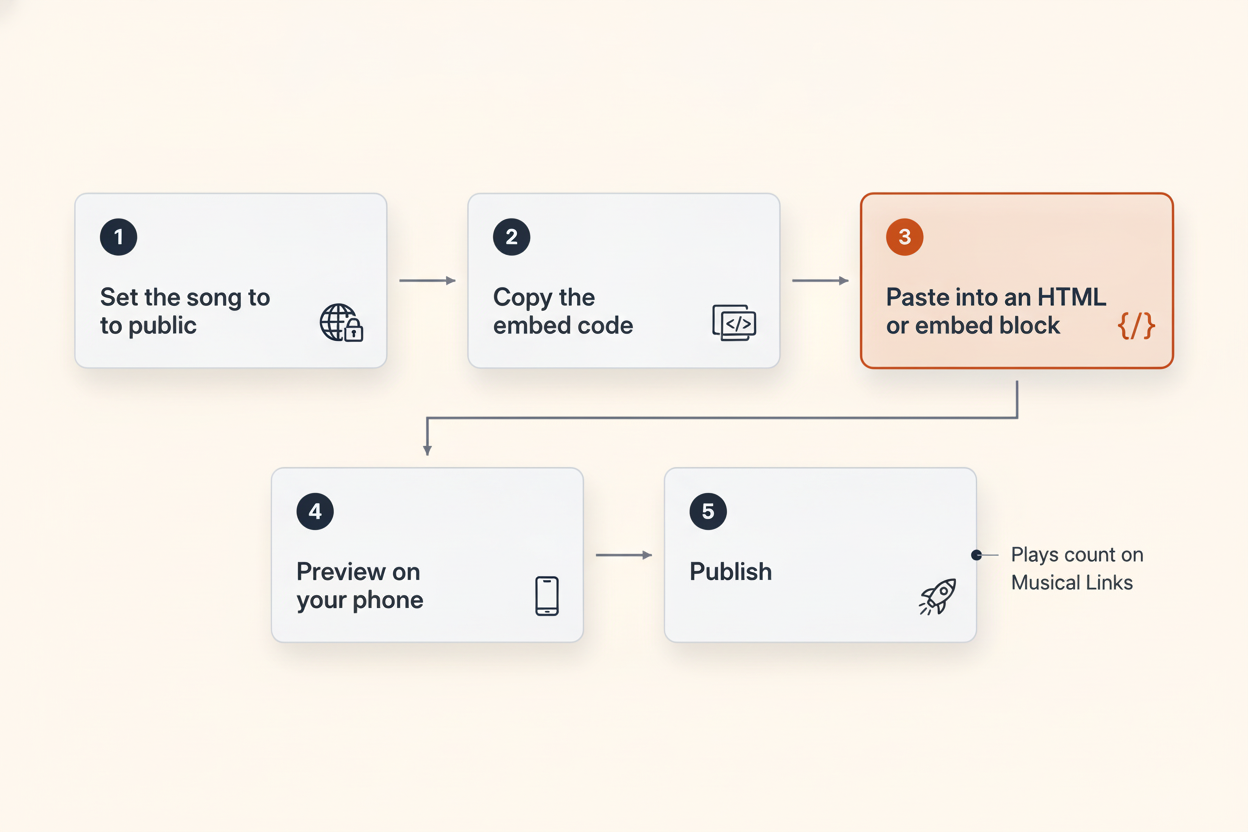
Start in your Musical Links studio with the song you want to feature, and check its visibility first. Each track is public (on your artist page and in Browse), unlisted (playable only through its secret link, kept off lists and search) or private (no link opens it). Only public songs can be embedded, and you can change the setting any time, so switch it to public if it isn't already. Then press the embed button on the song, or on a playlist if you'd rather share several, and copy the whole chunk of code it gives you. The whole chunk matters: a plain link sends people to your song's page, while the embed code builds a player on yours.
Link-in-bio pages like Linktree and Carrd
Link-in-bio tools are built around buttons, which is great for sending people places and less great for playing them something on the spot. Open your page editor and look through the block or element menu for anything labelled embed, HTML or code. If you find one, paste your Musical Links embed code into it, save, and open the live page on your phone, not just the editor preview. If the only thing the tool will take is a web address, don't wrestle it. Point your top button straight at your song's own Musical Links page, which already has a player waiting. It's one tap more than an embed, and nothing can break.
WordPress
In the WordPress block editor, the HTML block is the place for embed code. When someone on the WordPress.org forum asked how to get a music player's embed code working, a moderator pointed them there, with the note that other editors put it in a different place. Paste your Musical Links code in, then preview the page to see what visitors will actually get.
The classic snag: one person pasted an embedded-player URL straight into a WordPress post and got the message "Sorry this content could not be embedded." If you see that, you've most likely given WordPress an address where it wanted code. Go back to your studio, copy the full embed code and put it in an HTML block.
Other website builders
Site builders give their elements all sorts of friendly names, so the box you're after might be called embed, custom code or HTML. Drop one into the section where you want the song and paste the code in. If you're offered a choice between an audio element that wants a file and an embed element that wants code, pick the embed: your song keeps playing from Musical Links, the plays count there, and there's only one copy of the song to keep up to date.
Sizing the player for phones
If your bio link lives on a social profile, assume people will open it on a phone. A player laid out for a laptop can end up squashed or hanging off the edge of a small screen. Where your page builder gives you a choice, put the player in a section that spans the full width and pick any setting that lets it follow the screen instead of staying one fixed size. Then check the result on an actual phone, and on a friend's if theirs is smaller than yours, rather than trusting the editor preview.
Leave autoplay off if your page offers it. It looks like a shortcut to more listens, but some browsers block autoplay anyway, so plenty of visitors would land on a silent player regardless. What gets them to press play is a song worth pressing and a line telling them what it is.
Keep the count low, too. Columbia Sites recommends limiting how many embedded players sit on one page so it loads faster, and a bio page with five stacked players is a lot of scrolling before anyone hears a note. One player is plenty for a bio page. On a fuller music page on your website, a single Musical Links playlist embed gives people several songs while you only paste one player.
Choosing which songs go in the player
The visibility setting does some of the choosing for you. The unlisted demo you've been sending your drummer won't play in a player on your site until it's public, which is handy: sketches can stay unlisted for the band, and only the songs you're ready for strangers to hear need to go public.
Then pick the song you'd play a stranger first. That's usually your strongest finished track, not automatically your newest, and ideally one that gets going quickly, because someone tapping through from a profile hasn't promised you their whole afternoon. A work in progress can live on your own page too; Musical Links is built for sharing exactly that, along with music made purely for the fun of it. Just say what it is. A note like "rough mix, vocals still to redo" tells people what they're hearing. If you'd like to give listeners a bit more of the story, there's a whole piece on what musicians wish listeners knew about how their songs get made.
Add a line of text above every player. Columbia Sites' guidance says embedded players should work with a keyboard and a screen reader, and that you should give a brief description of the audio for anyone who can't use the player. You can't rebuild the player yourself, but you can write that description: the song title, who's on it and a few words on what it sounds like. "Kitchen Floor: slow acoustic song, two guitars and harmonica, recorded at home" does the job.
Deleting a song silences its player
Once you delete a song from your studio, its page, link and embed stop at once, so the player on your website goes quiet the moment you delete. The files are removed when the trash is emptied (after 30 days by default), and there's no undo from the studio.
So keep your embeds in step with your catalogue. If you're swapping in a new mix, upload it, paste the new embed code, then retire the old song. And keep your own copies of everything: Musical Links is provided as is and isn't a backup.
A last check before you publish
Embed check
- The song is set to public
- You copied the full embed code, not just the link
- It sits in an HTML, embed or code block
- The player fits the screen on your own phone
- Autoplay is off
- One player on a bio page, or one playlist embed on a site
- A line of text says what the song is and who's playing
- Your own copy of the song is saved somewhere safe
Then send the page to one friend and ask them to press play on their phone. If they hear your song without having to text you for help, the embed is doing its job, and you can get back to making the next one.
Want to tell listeners a bit of the story behind your song? Read: What Musicians Wish Listeners Knew About How Their Songs Get Made
Sources
- Mastering Soundcloud Embedding: A Step-By-Step Guide For Your Website | SoundCy – soundcy.com
- How to use the embed Bandcamp Player ? | WordPress.org – wordpress.org
- Add a SoundCloud audio track or playlist to my website | Websites + Marketing – GoDaddy Help US – godaddy.com
- Soundcloud Embed | Columbia Sites – sites.columbia.edu